
Disable Drupal Cache For Development
When developing a Drupal website, or a Drupal module or a Drupal theme, its caching can slow you down. Drupal aggressively caches pages, blocks, Twig templates and you cannot see immediate changes.
When you make a change to a template file, a module, or a configuration setting, you want to see that change reflected instantly. Drupal’s caching layers (render cache, dynamic page cache, Twig cache, etc.) prevent this immediate feedback by serving cached versions of pages and assets. Disabling them ensures you’re always seeing the latest version of your work.
You do not need to modify any Drupal files. Its easy and can be done only by few clicks from the admin panel.
Follow below to disable Drupal cache safely.
Step #1: Login as admin
Login to your Drupal website as admin.
example.com/user
Step #2: Navigate to Development settings
Administration Configuration Development Development settings
example.com/admin/config/development/settings
Step #3: Enable Development mode
Check all options and click Save settings button.

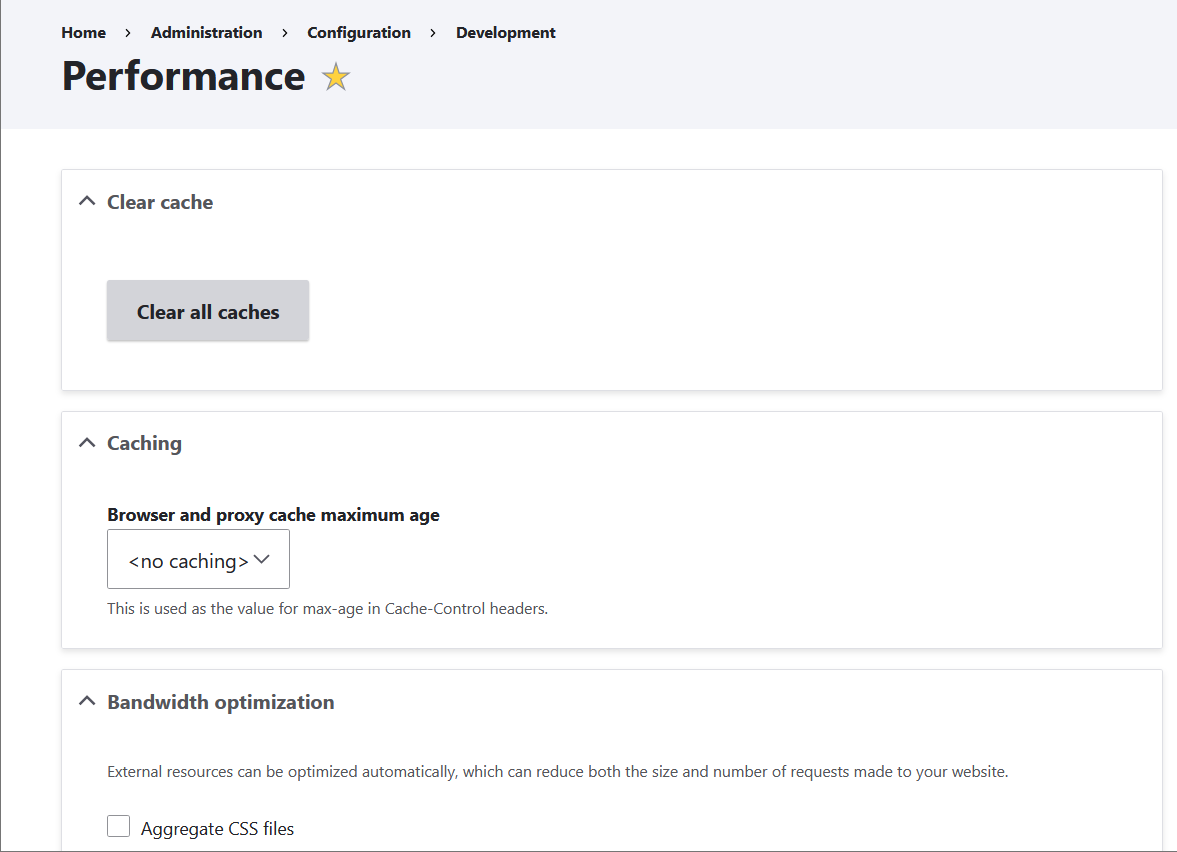
Step #4: Clear cache
Navigate to performance page and clear all caches.
Administration Configuration Development Performance
example.com/admin/config/development/performance
Done!
You have successfully disabled Drupal’s caching for development. Your site will now reflect changes instantly. Just remember to re-enable caching before moving to production for optimal performance and faster page loads.
Hire us to speed-up your Drupal website
If you need help optimizing your Drupal website, feel free to reach us via our contact form at: drupar.com/contact