How to Add a Custom Text Format Without CKEditor in Drupal
In Drupal, Text Formats control how user-entered content is processed and displayed. They define which HTML tags are allowed, what filters run (like HTML filtering or link conversion), and who can use them. Creating a custom text format helps you balance flexibility, consistency, and security.
This guide explains step by step how to create a new text format without CKEditor in Drupal.
Why We need a text format without CKEditor
CKEditor by default filter out many HTML tags. For example, it removes font icon <i></i> tag.
So, in these cases it is better to use a text format without CKEditor.
Step 1:
Log in as an Administrator and navigate to:
Home Administration Configuration Content authoring Text formats and editors
example.com/admin/config/content/formats
Step 2:
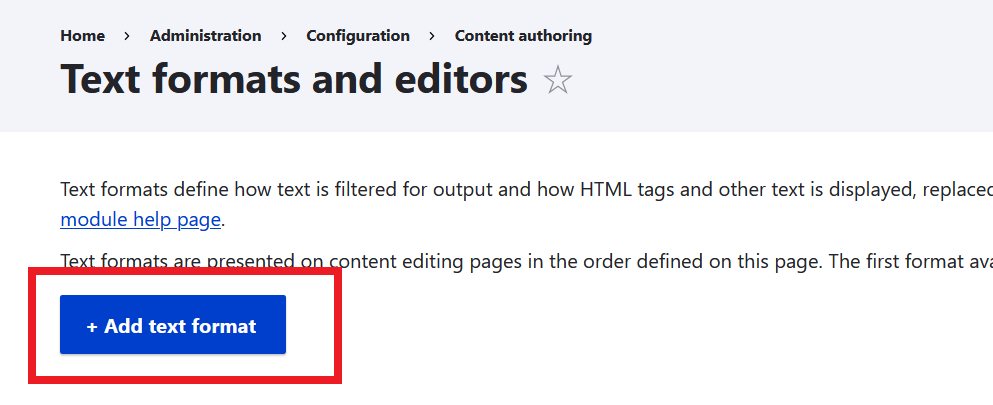
Click Add text format button.
Step 3:
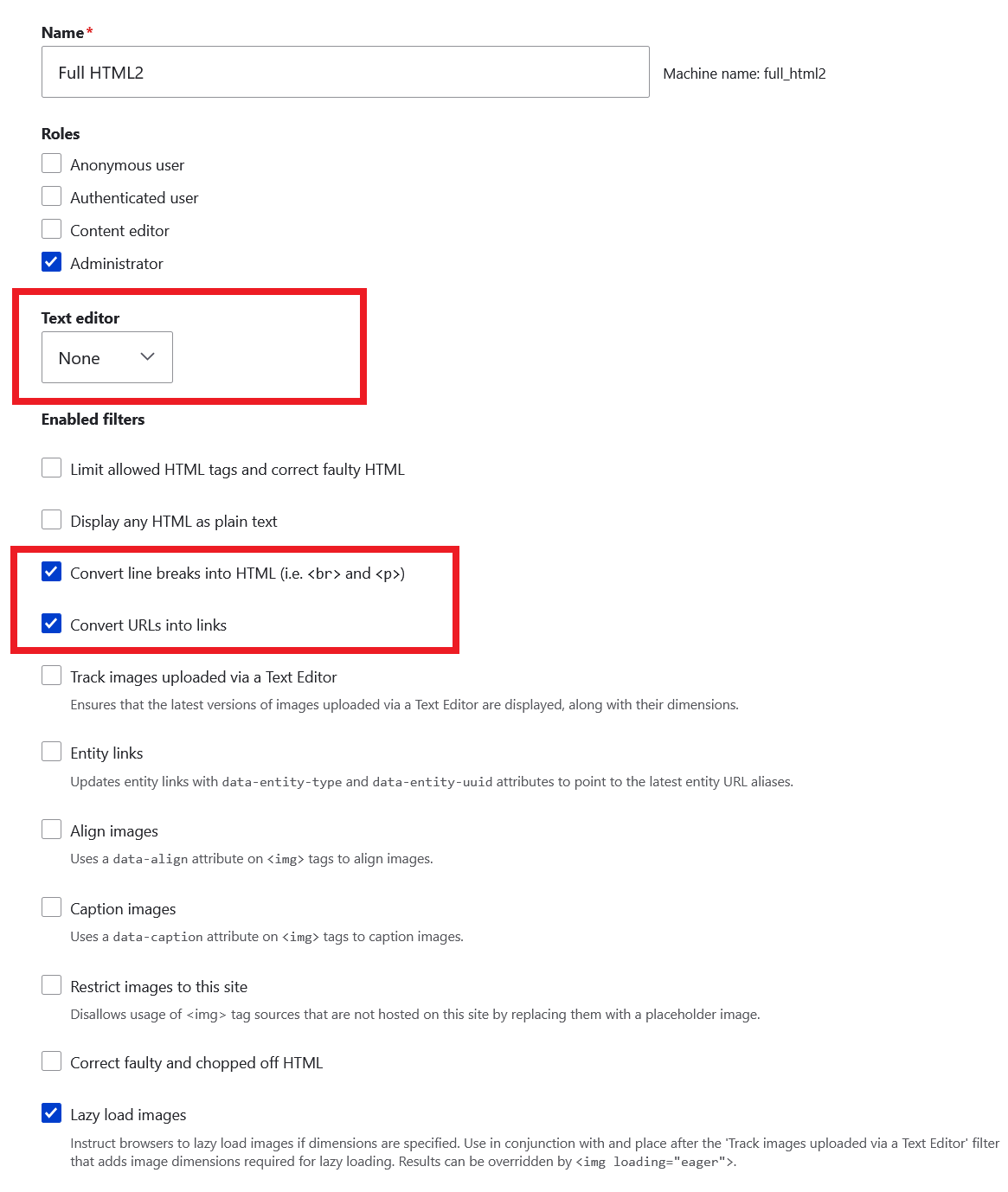
Create a new text format with following settings.
Name: Full HTML2
Roles: Administrator
Text editor: none
Enable Following filters:
- Convert line breaks into HTML (i.e. <br> and <p>)
- Convert URLs into links
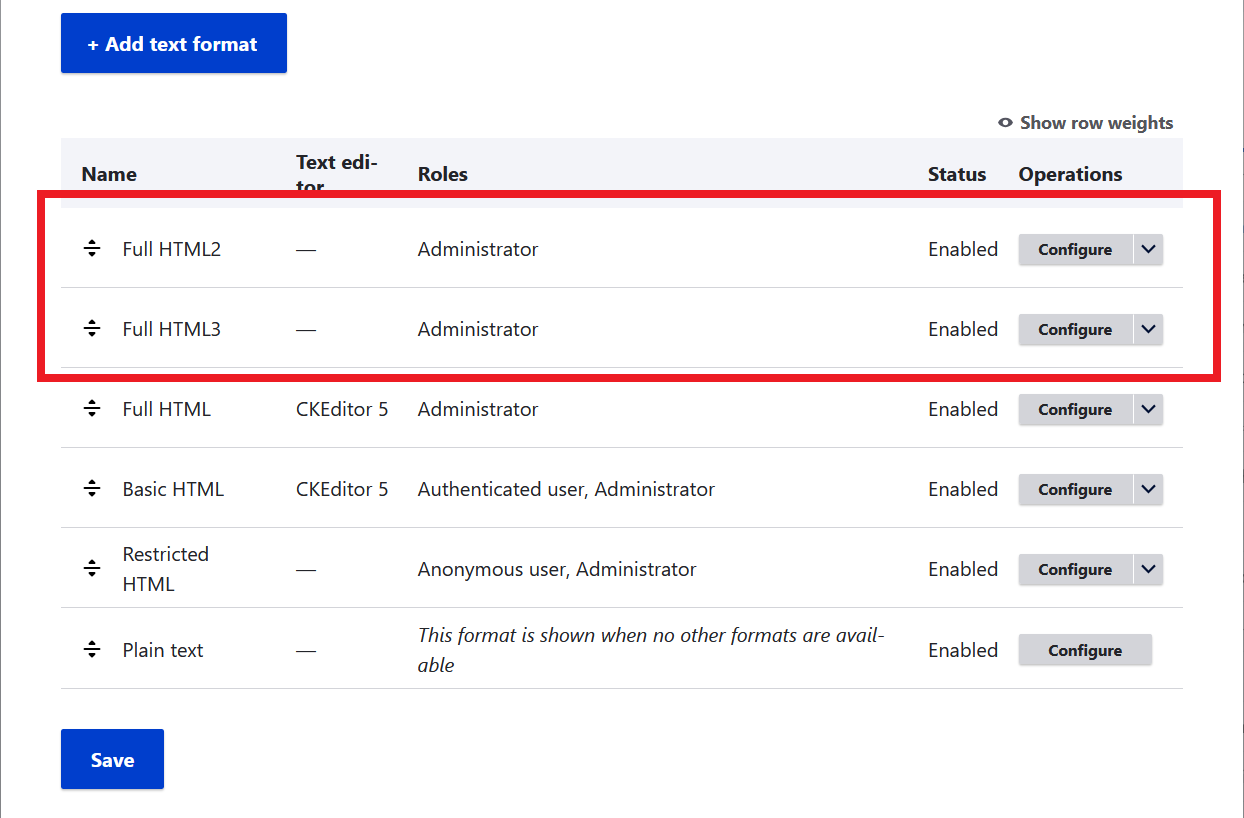
Click Save configuration button. Your new text format Full HTML2 is now ready to use.
Step 4:
In this step we will repeat step #3 to create one more text format, but without line breaks and links.
Name: Full HTML3
Roles: Administrator
Text editor: none
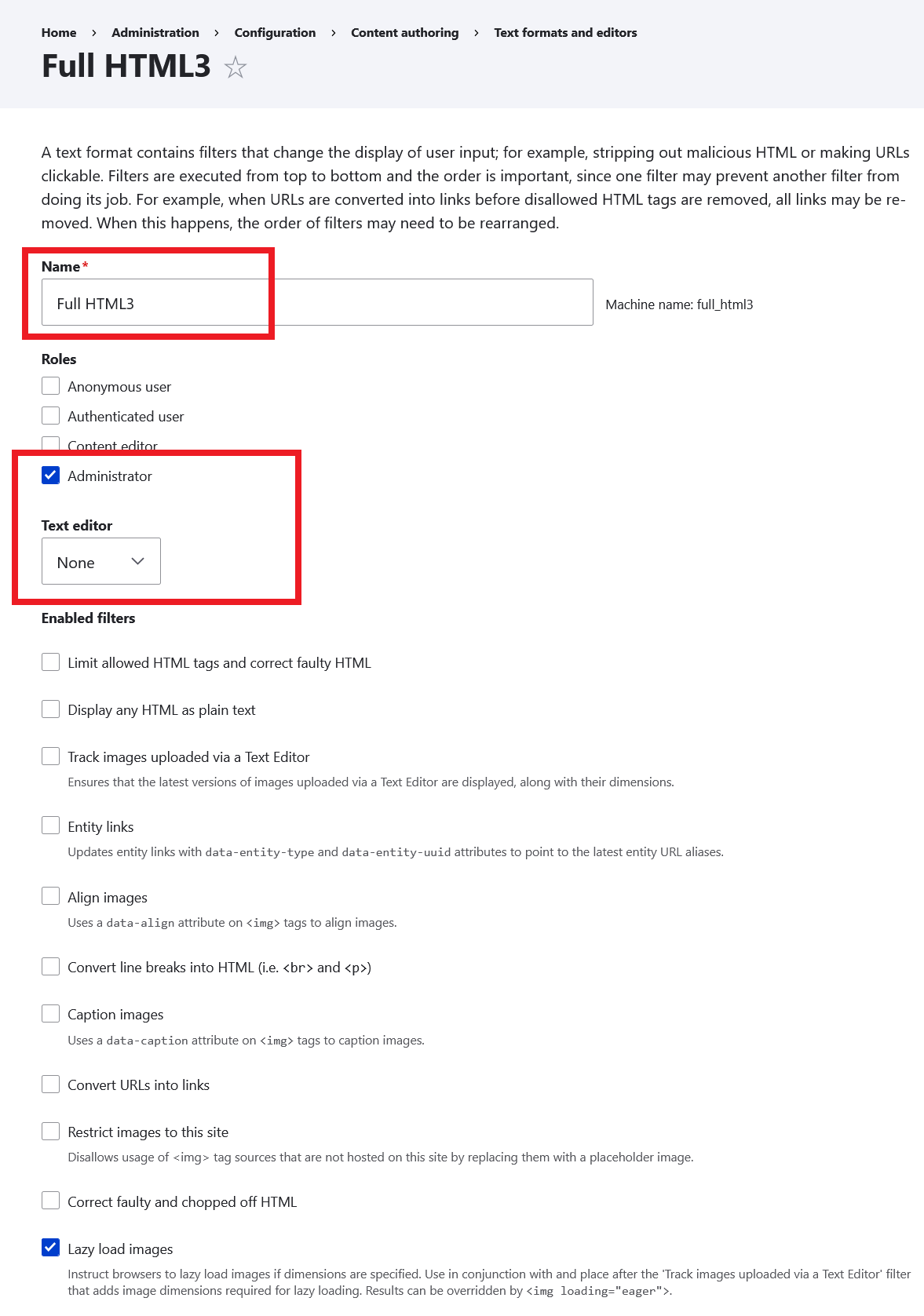
Click Save configuration button. Your new text format Full HTML3 is now ready to use.