
Manage Website Logo
Drupal allows you to use the Site Name, Site Slogan, and logo image — either individually or in combination — as your website logo.
Step #1 – Block Placement
Place the Site branding block in the Site Branding block region of the theme from:
Administration Structure Block layout
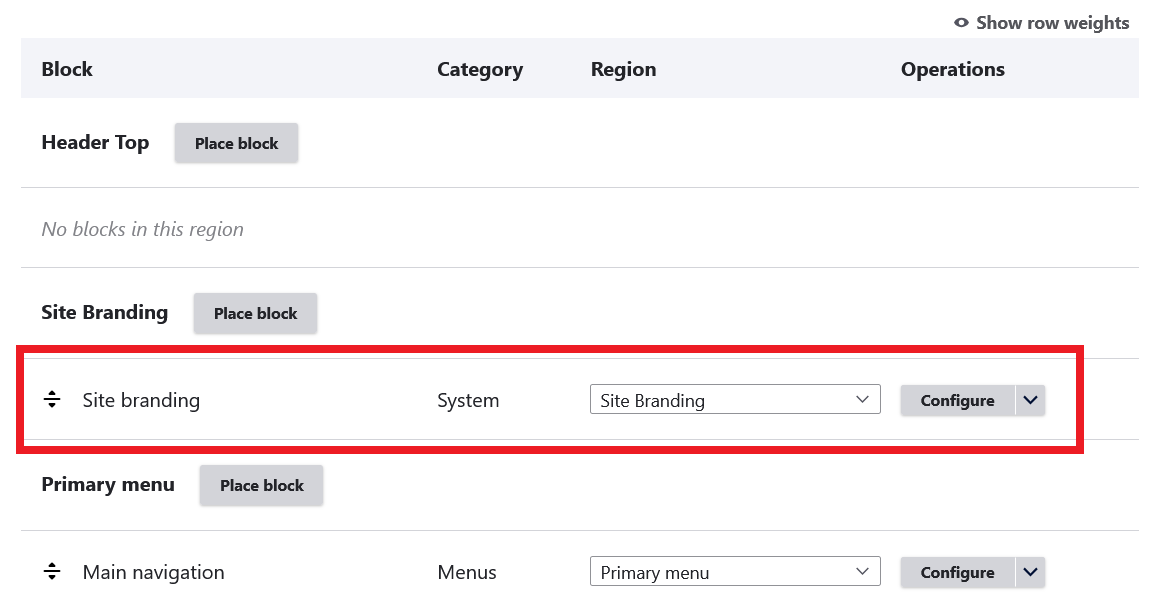
Step #2 – Select Elements to Display as Site Logo
Drupal allows you to control which elements are displayed as part of your site branding. You can choose to show the Site Name, Site Slogan, Logo image, or any combination of these.
- Navigate to: Administration Structure Block layout
- Click Configure button of Site branding block.
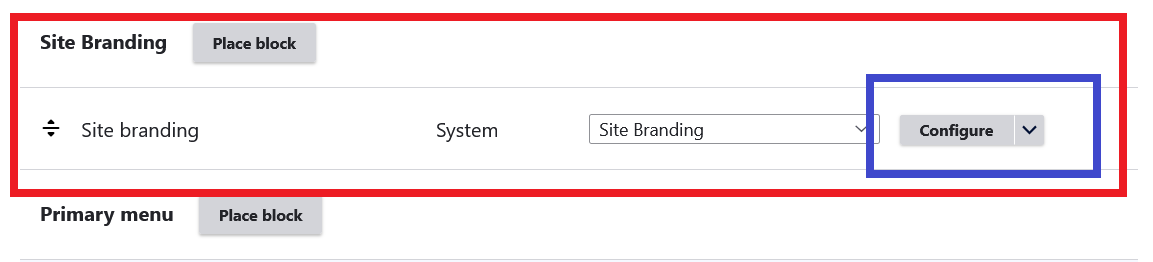
- Enable or disable the options that you want to use as logo and save.
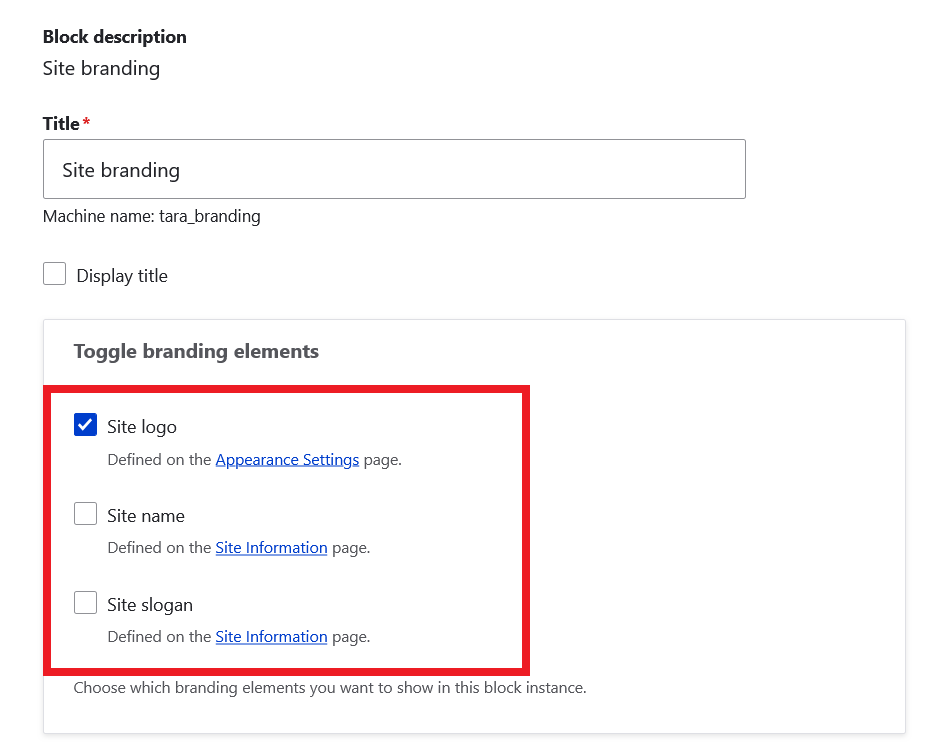
Step #3 – Set Site Name and Site Slogan
You can set / update the Site Name and Site Slogan of your Drupal site from:
Administration Configuration System Basic site settings
On this page you can set site name and site slogan of your Drupal site.
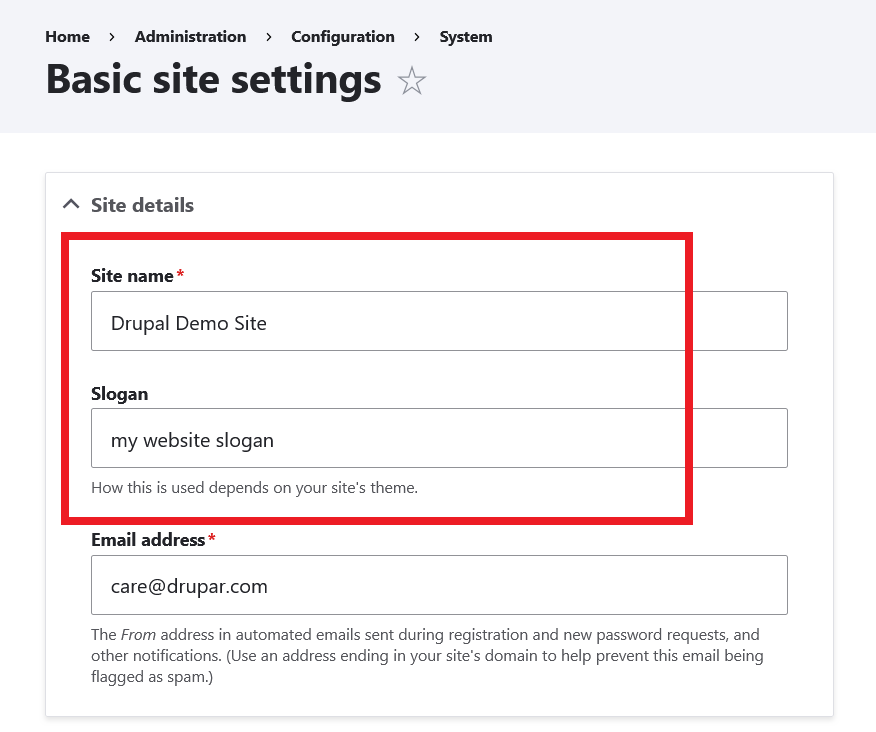
Step #4 – Change Logo Image
In this step we will change the default logo of the theme.
- Navigate to: Administration Appearance Appearance settings mili
example.com/admin/appearance/settings/mili
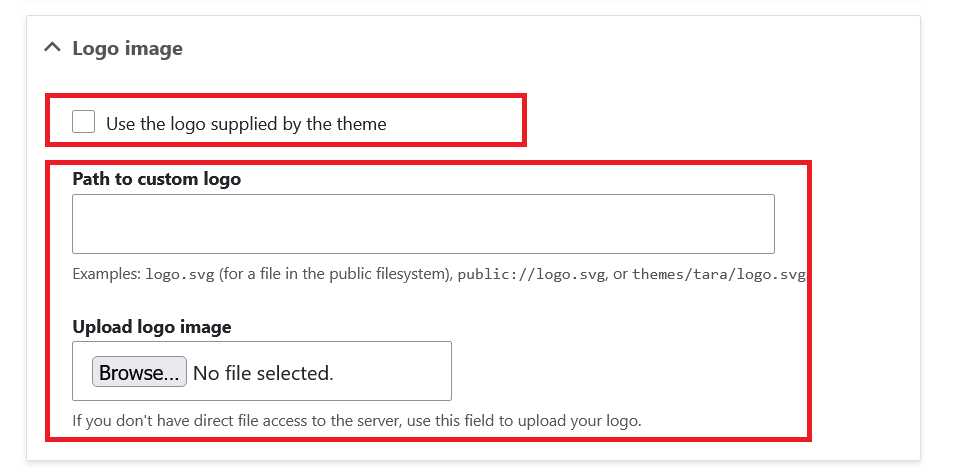
- Uncheck the option Use the logo supplied by the theme.
- Upload your logo image or provide its path.
- Click Save configuration button.
Step #5 – Clear Drupal cache
Clear Drupal cache after updating site branding of your site, from:
Configuration Development Performance
example.com/admin/config/development/performance