How To Install Theme
This documentation explains how to install the Edux Drupal Theme on your Drupal website. You can install the theme using Composer or manually using FTP / File manager.
Methods to Install Theme
There are two common methods to install a new Drupal theme. You can use either method to install the Edux theme.
-
Composer: If you are familiar with composer and have composer access, this is the easiest and preferred method.
- Manual Installation Using FTP / File Manager: Use this method if you cannot use composer or wants to install the theme manually.
Method #1 – Install using composer
1.1 – Get Composer Command
Visit Edux theme project page on Drupal.org to get the composer command to install Edux theme: https://www.drupal.org/project/edux
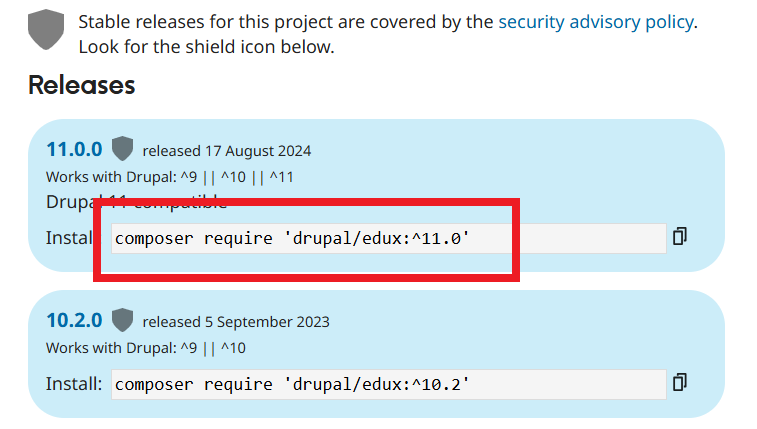
1.2 – Run composer command
Log in to your server via SSH / terminal and go to your Drupal root directory. Now run the composer command. Composer will download two themes (edux and thex) and place it inside:
/themes/contrib/edux
/themes/contrib/thex
1.3 – Enable the Theme
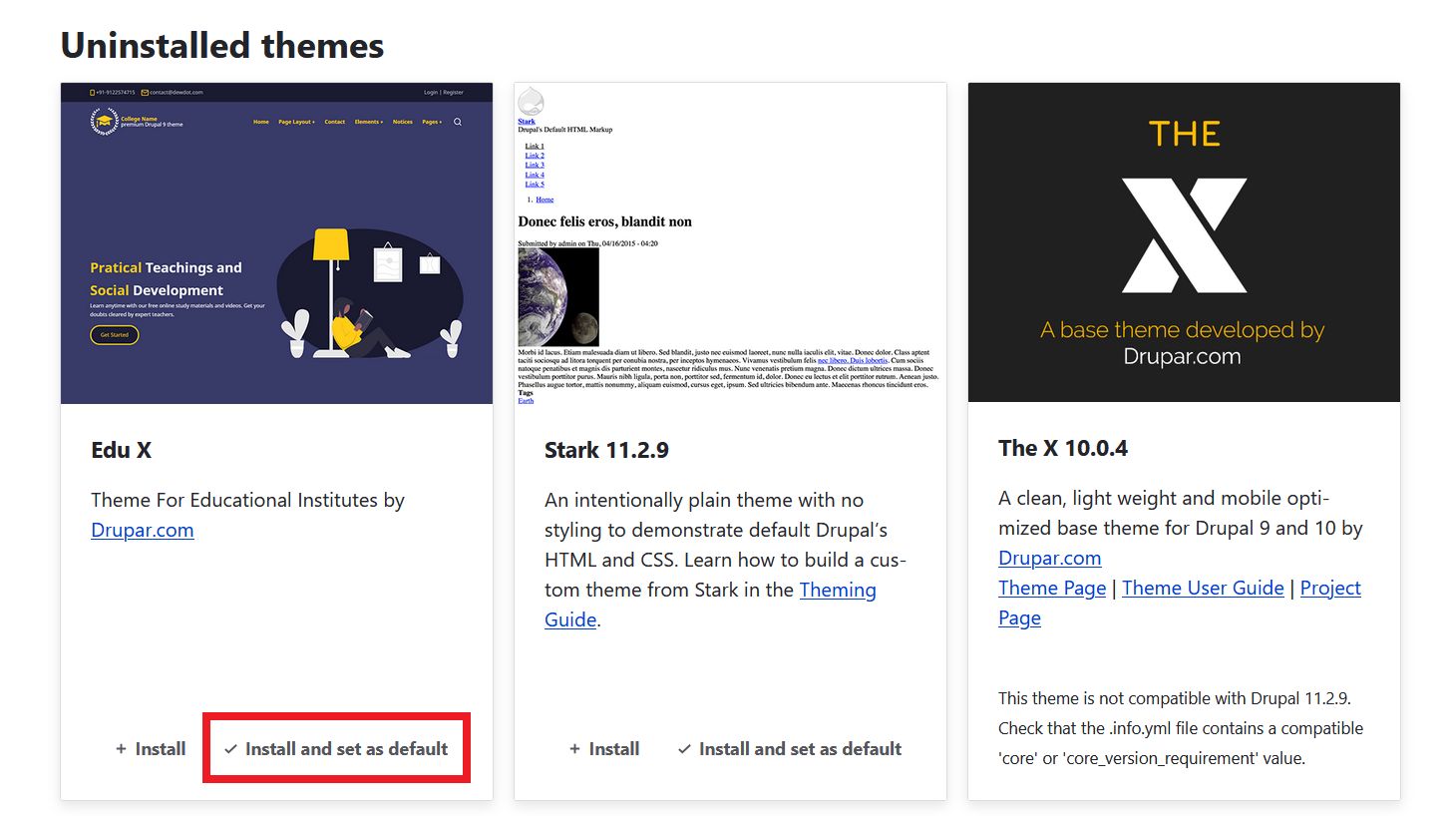
After installing the theme using composer, log in to your Drupal admin dashboard.
- Go to Appearance page.
- Find Edu X theme.
- Click Install and set as default.
1.4 – Clear Cache
After enabling the theme, clear the Drupal cache to ensure all styles and configurations load correctly from:
example.com/admin/config/development/performance
Method #2 – Install Manually Using FTP / File Manager
Use this method if you do not have access to Composer or prefer to install the theme manually.
2.1 – Download Theme
You need to download and upload two themes as Edux theme uses The X as the base theme.
Visit Edux theme project page on Drupal.org: https://www.drupal.org/project/edux
Visit Thex theme project page on Drupal.org: https://www.drupal.org/project/thex
Click the version name in the Releases section. This will take you to the download page of the theme.
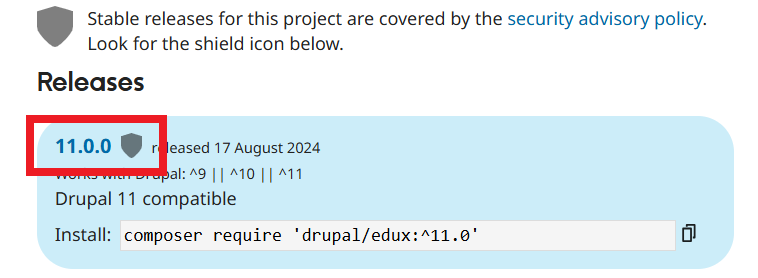
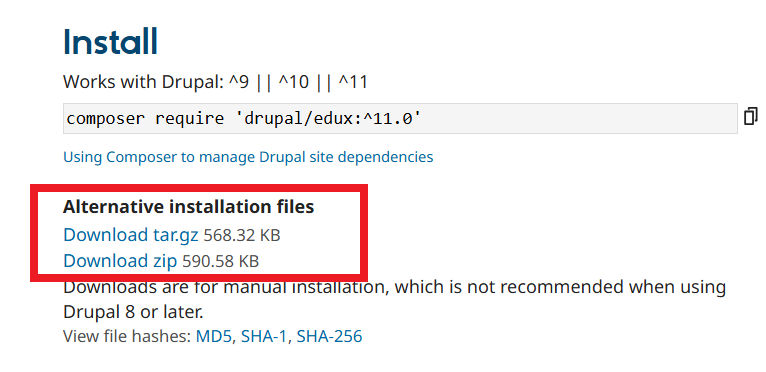
Click Download tar.gz or Download zip to download and save the .zip or .tar.gz files of both themes to your computer.
2.2 – Extract The Downloaded Files
Extract both the downloaded .zip or .tar.gz file on your computer. After extraction, you will have two folder named edux and thex.
2.3 – Upload the Theme Using FTP
- Connect to your hosting server using any FTP client (such as FileZilla). You can also use File Manager of your hosting control panel (such as cPanel / DirectAdmin / Plesk).
- Upload the extracted edux and thex folders to /themes or /themes/contrib/ or /web/themes or /web/themes/contrib/ directory of your Drupal installation.
2.4 – Enable the Theme
After uploading theme files, log in to your Drupal admin dashboard.
- Go to Appearance page.
- Find Edu X theme.
- Click Install and set as default.
2.5 – Clear Cache
After enabling the theme, clear the Drupal cache to ensure all styles and configurations load correctly from:
Configuration Development Performance
example.com/admin/config/development/performance
Check Theme Settings
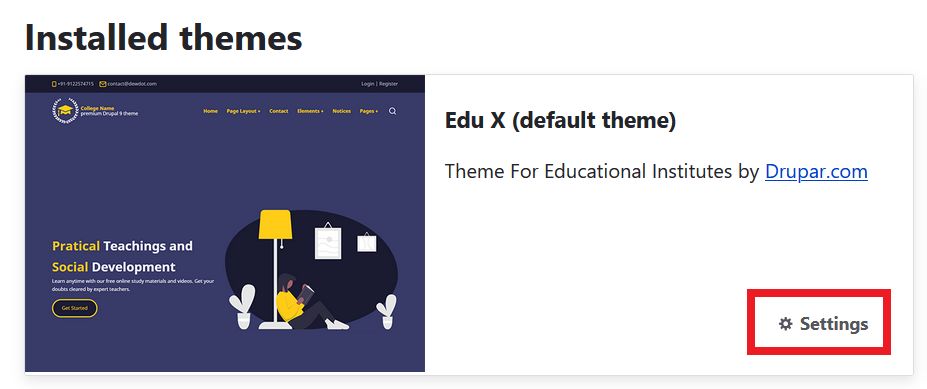
After enabling the theme, go to the theme settings page to configure the available options.